
Chapter 3: How do I install TOMOYO Linux?
3.1. Install the kernel
3.1.1. Determine if your kernel has TOMOYO Linux enabled
TOMOYO Linux 2.3.x is integrated with the upstream kernel source, but is only enabled when certain kernel configuration options are set. You can determine if your kernel has TOMOYO Linux enabled by running the following command:
$ grep tomoyo_supervisor /proc/kallsyms
ffffffff8115e460 T tomoyo_supervisor
If you found a line containing tomoyo_supervisor in "/proc/kallsyms", proceed to 3.2. Install the userspace tools because your kernel was built with TOMOYO Linux.
If not, then your kernel was not built with TOMOYO Linux and you should follow the steps below.
If you wish to obtain the most functionality out of TOMOYO Linux, then you may wish to use either the 1.x branch (which requires you to build your own kernel), or AKARI (which is a module and does not require you to build your own kernel). AKARI module currently provides more functionality than the 2.x branch, but is missing a small number of features that the 1.x branch provides. It is easy to use with any kernel from Linux 2.6.0 and later, depending on how the kernel has been configured and the CPU architecture. This chart provides a detailed comparison between AKARI and both the 1.x and 2.x branches. If you would prefer to use this module, please visit the AKARI website.
If you still want to use TOMOYO 2.x but have no reason not to use TOMOYO 2.5, use of TOMOYO 2.5 is recommended. TOMOYO 2.5 is more powerful and user friendly.
3.1.2. Install dependencies
These packages are required for compiling the kernel and the userspace tools:
- wget: to download sources
- patch: to patch the kernel
- gcc: to build the kernel and tools
- make: to build the kernel and tools
- ncurses-devel or libncurses-dev: to build the tools
These can be installed with the following commands:
RedHat distributions
# yum -y install wget patch gcc make ncurses-devel
Debian distributions
# apt-get -y install wget patch gcc make libncurses-dev
SUSE distributions
# yast -i wget patch gcc make ncurses-devel
3.1.3. Download the kernel
Download the kernel source from "linux-2.6" or "linux-3.0".
Linux kernels from 2.6.36 to 3.0 are supported.
Extract the kernel source and go to the extracted directory.
There may be bugfixes that are too late to get merged in the upstream kernel releases. Download all patches that match your kernel version (e.g. 2.6.39-tomoyo-\*.patch for 2.6.39 kernels) from https://tomoyo.sourceforge.net/2.3/patches/ and run below command from the kernel's top directory. (Below command will skip already applied patch if any.)
$ for i in 2.6.*-tomoyo-*.patch; do patch -Nt -p1 --dry-run < $i && patch -p1 < $i; done
3.1.4. Configure the kernel
$ make -s menuconfig
Choose the following options in the "Security options" section (although "Default security module" is optional):
[*] Enable different security models
-*- Enable the securityfs filesystem
-*- Security hooks for pathname based access control
[*] TOMOYO Linux Support
    Default security module (TOMOYO)
3.1.5. Compile and install the kernel
Once the kernel has been configured, compile and install the kernel with the following commands:
$ make -s
$ su
# make -s modules_install install
Create initrd/initramfs if required.
3.2. Install the userspace tools
3.2.1. Determine if binary packages are provided
If your repository provides tomoyo-tools or tomoyotools package, and the package's version is 2.3, you can use that package. Install and proceed to 3.3. Initialize configuration.
3.2.2. Install tools from source
Make sure the dependencies described above have been installed. Compile and install the tools with the following commands:
# wget https://sourceforge.net/projects/tomoyo/files/tomoyo-tools/2.3/tomoyo-tools-2.3.0-20120414.tar.gz
# wget https://sourceforge.net/projects/tomoyo/files/tomoyo-tools/2.3/tomoyo-tools-2.3.0-20120414.tar.gz.asc
# wget https://tomoyo.sourceforge.net/kumaneko-key
# gpg --import kumaneko-key
# gpg tomoyo-tools-2.3.0-20120414.tar.gz.asc
# tar -zxf tomoyo-tools-2.3.0-20120414.tar.gz
# make -C tomoyo-tools/ install
3.3. Initialize configuration
You will probably want to add the location of the userspace tools (/usr/sbin) to your PATH so that the commands can be run easily. If you are using /bin/bash, append the following line to ~/.bashrc:
export PATH=$PATH:/usr/sbin
Before you can make use of TOMOYO Linux, an initialization procedure must take place. This prepares the files in which policy information will be stored. All policy files are stored in the "/etc/tomoyo/" directory.
You should see the following output by executing /usr/lib/tomoyo/init_policy:
# /usr/lib/tomoyo/init_policy
Creating policy directory... OK
Creating exception policy... OK
Creating domain policy... OK
Creating manager policy... OK
Creating default profile... OK
Creating memory quota policy... OK
Note that the policy configuration is not compatible between TOMOYO 2.2 and TOMOYO 2.3. If policy has been developed for TOMOYO 2.2 then the "/etc/tomoyo/" directory needs to be deleted or renamed, otherwise there will be a kernel panic on the next boot.
3.4. Configure bootloader
Now edit your bootloader (e.g. GRUB) to include the kernel you have just compiled. If your kernel config does not contain "CONFIG_DEFAULT_SECURITY_TOMOYO=y", then edit your bootloader to include "security=tomoyo" in the kernel boot options. Depending on your distribution, the bootloader configuration file will probably be one of "/boot/grub/grub.conf" or "/boot/grub/menu.lst" (for GRUB version 1) or "/boot/grub/grub.cfg" or "/boot/grub2/grub.cfg" (for GRUB version 2). Consult your distribution documentation for information on how to configure the bootloader.
3.5. Rebooting your system
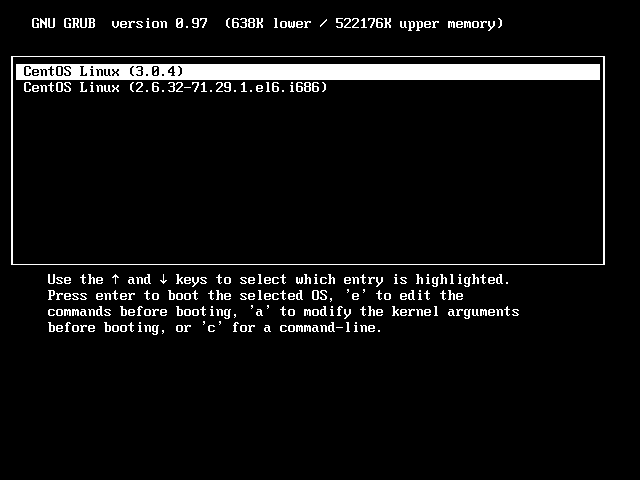
Now you have finished all preparation. You can't wait any more? Now it's time to make use of your newly installed kernel. Reboot your system and choose the entry with TOMOYO Linux kernel at the GRUB screen, or at whatever other bootloader you have installed:
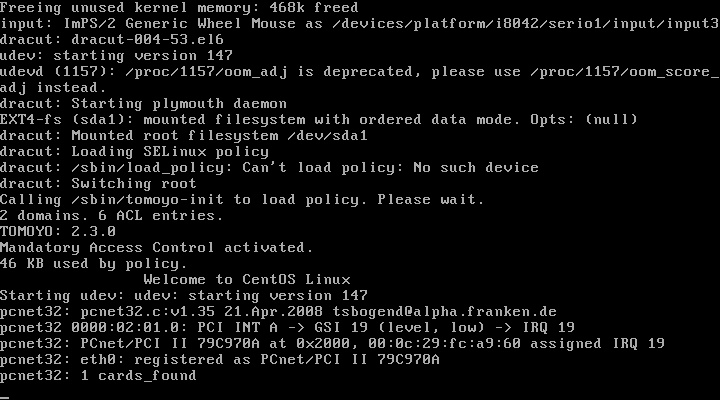
If everything was installed properly and the bootloader was correctly configured, the kernel should boot as normal and TOMOYO Linux should be activated:
3.6. How can I disable/uninstall TOMOYO Linux?
If your system becomes unable to boot during the course of this guide or any time in the future, it may be due to policy configuration or something related to TOMOYO Linux. If this is the case, it is possible that the kernel can still be booted by disabling TOMOYO Linux. This can be done by appending "security=none" at the kernel command-line parameters.