
How to use the policy editor
Contents
- General hotkeys
- Common operations
- Operations in the Domain Transition Editor screen
- The initialize_domain and no_initialize_domain directives
- The keep_domain and no_keep_domain directives
- Remove redundant entries
General hotkeys
The policy editor can be run with the following command:
# tomoyo-editpolicy
You may give one of a/d/p/m/s to the commandline to choose the initial screen. If an option is not given, the default "Domain Transition Editor" screen is shown.
While using the ncurses interface, the hotkeys listed below can be used:
Key |
Scroll action |
|---|---|
Up-arrow |
Scroll 1 line up |
Down-arrow |
Scroll 1 line down |
PageUp |
Scroll 1 page up |
PageDown |
Scroll 1 page down |
Right-arrow |
Scroll 1 column right |
Left-arrow |
Scroll 1 column left |
Home |
Move to the top of line |
End |
Move to the bottom of line |
Key |
Search action |
|---|---|
f/F |
Find First |
n/N |
Find Next |
p/P |
Find Previous |
Key |
Edit action |
|---|---|
a/A |
Add an entry. |
Enter |
Edit ACLs of a domain at the cursor position on "Domain Transition Editor" screen |
Space |
Invert selection state of an entry at the cursor position. |
c/C |
Copy selection state of an entry at the cursor position to all entries below the cursor position. |
d/D |
Delete selected entries. |
s/S |
Set profile number of selected entries on "Domain Transition Editor" screen". |
Insert |
Copy an entry at the cursor position to history buffer. |
Key |
Miscellaneous action |
|---|---|
q/Q |
Quit |
r/R |
Refresh |
w/W |
Switch to window list. |
Common operations
Available screens
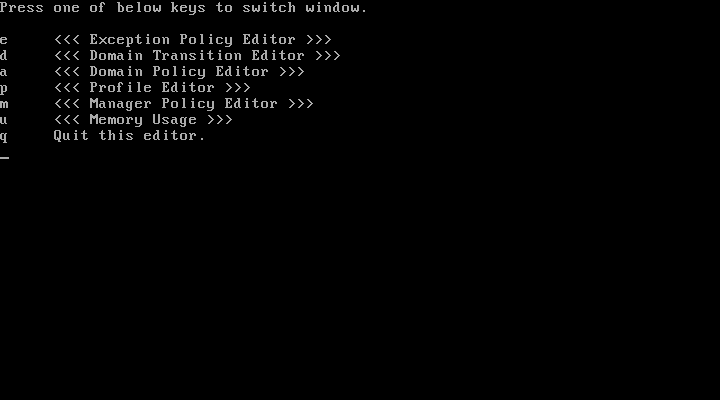
Press the "w" key to show the window/screen list and press a key to view the corresponding screen:
Domain Transition Editor screen
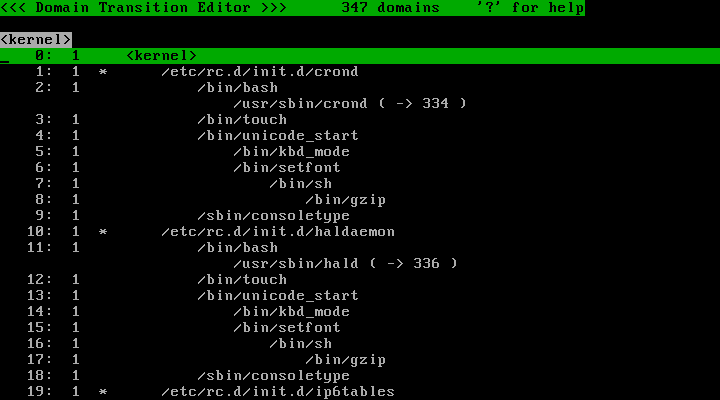
The first line shows what screen you are on and how many domains are listed.
The second line is the message area.
The third line shows the domain name currently selected by the cursor.
The fourth line and downwards are the domains currently defined.
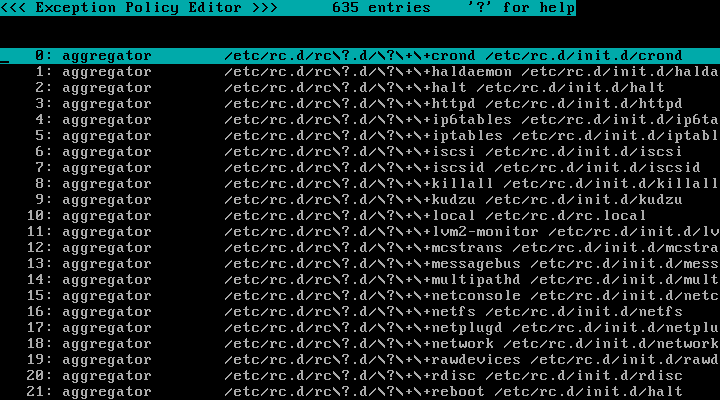
Exception Policy Editor screen
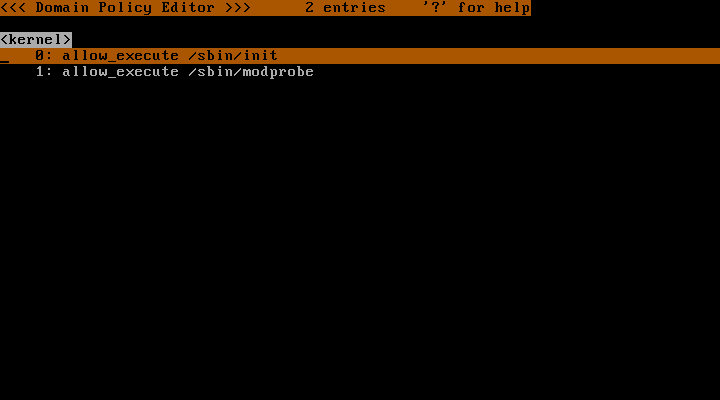
Domain Policy Editor screen
Note: This can also be viewed by pressing "Enter" in the "Domain Transition Editor" screen.
Profile Editor screen
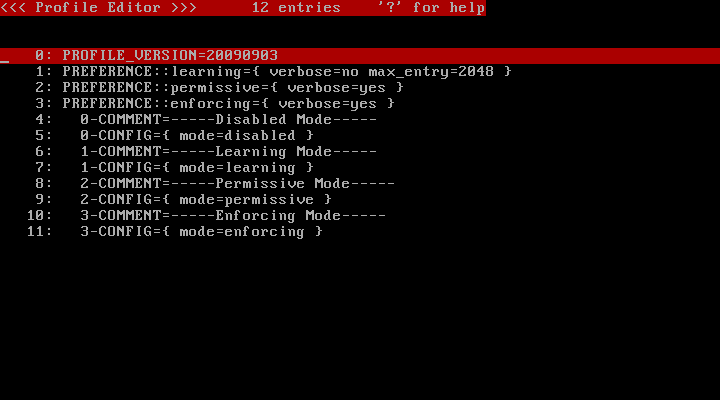
Manager Policy Editor screen
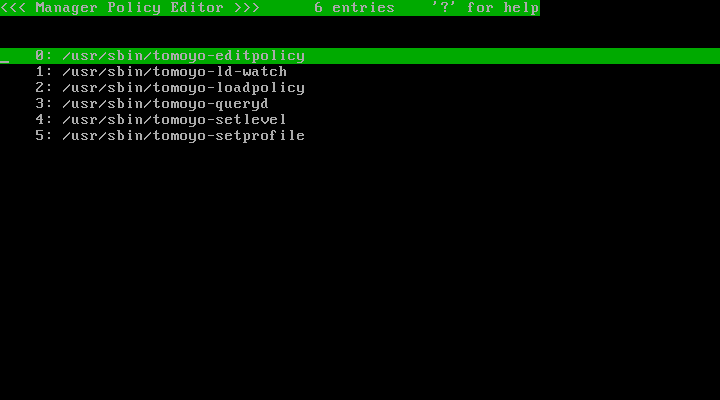
Memory Usage screen
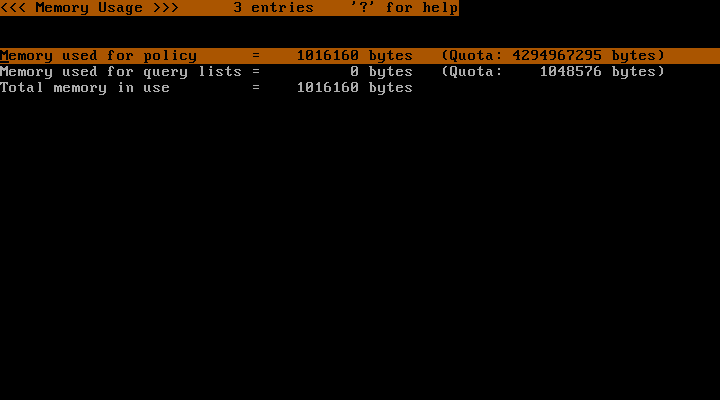
Search for an entry
To search for a string, press the "f" key and type the string that you wish to search:
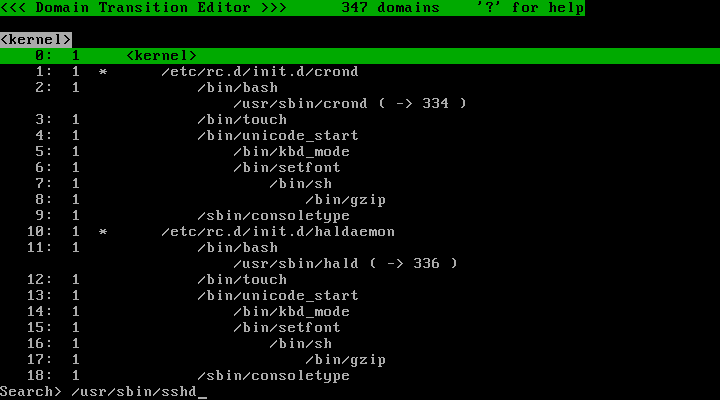
To continue searching in a forward direction, press the "n" key.
To continue searching in a backward direction, press the "b" key.
Add an entry
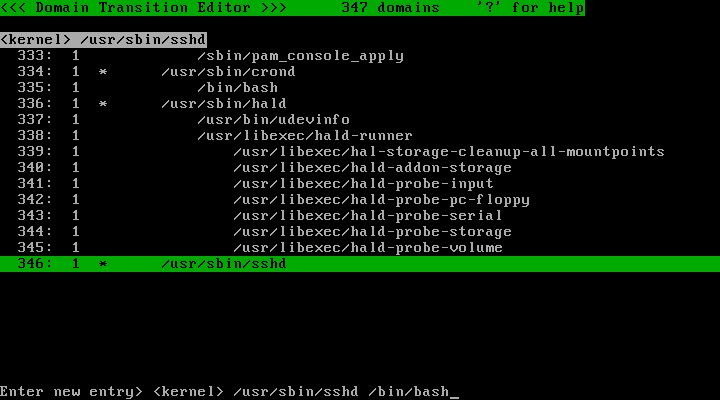
To add an entry, press the "a" key and type the string that you wish to add. The strings are saved in the history buffer and can be viewed by pressing the "Insert" key. To load strings in the history buffer, press the Up/Down cursor keys. This can be used in any of the screens except the "Memory Usage" screen.
An example operation in the "Domain Transition Editor" screen:
Select an entry
Move the cursor to the entry you wish to select and press the "Space" key. When an entry is selected, an "&" symbol will appear at the start of the line. Multiple entries can be selected, and the "Space" key can also be used to deselect an entry.
The selection state of the entry of the cursor line can be copied to all entries below by pressing the "c" key.
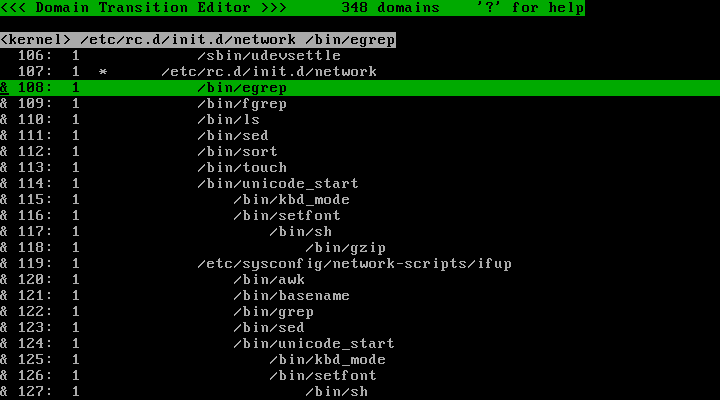
This makes it easy to select all entries or a block of entries. If you wish to select a block of entries, move the cursor to the first entry of the block and press the "Space" (to select) and "c" keys. Then move the cursor to the entry that lies below the block and press the "Space" (to deselect) and "c" keys.
Delete an entry
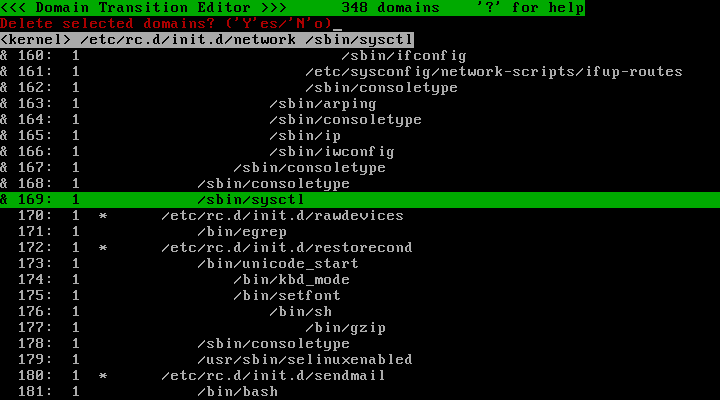
To delete an entry, move the cursor to the entry you wish to delete and press the "d" key. This can also be done by selecting all of the entries you wish to delete.
Operations in the Domain Transition Editor screen
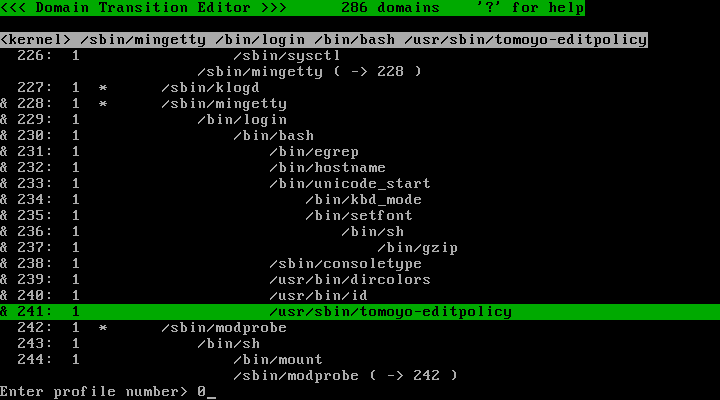
Change profile number
Press the "s" key, type the profile number you wish to set, and press the "Enter" key:
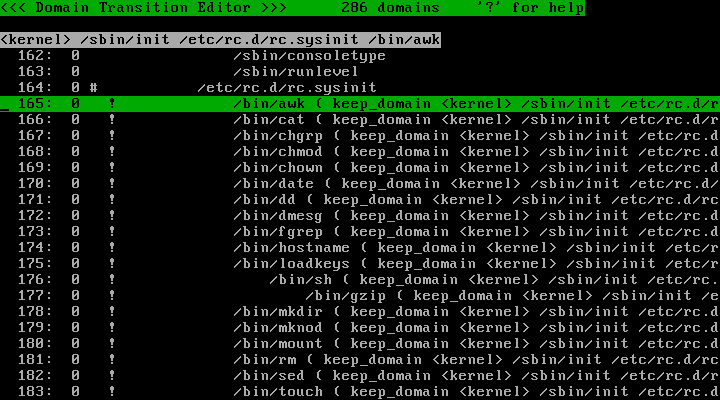
Domains with the "!" mark
This means the domain is unreachable due to either initialize_domain or keep_domain directives.
Any domains marked with a "!" can be safely deleted.
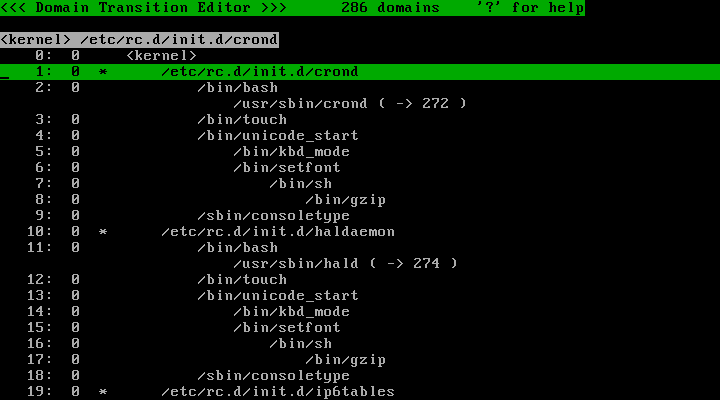
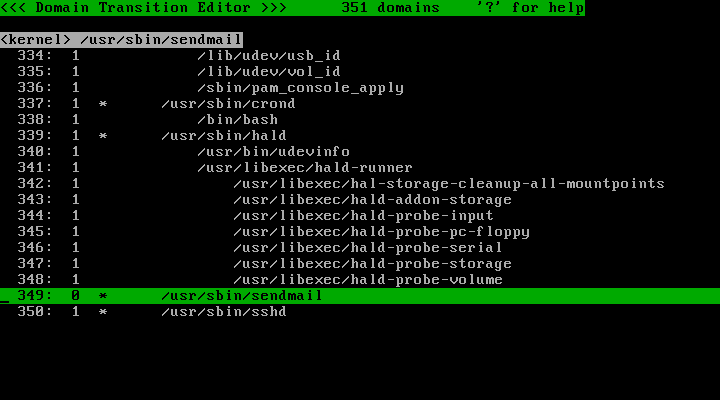
Domains with the "*" mark
This means that multiple domains might transit to this domain due to the initialize_domain directive.
If this domain does not have this mark, only the parent of this domain can transit to this domain.
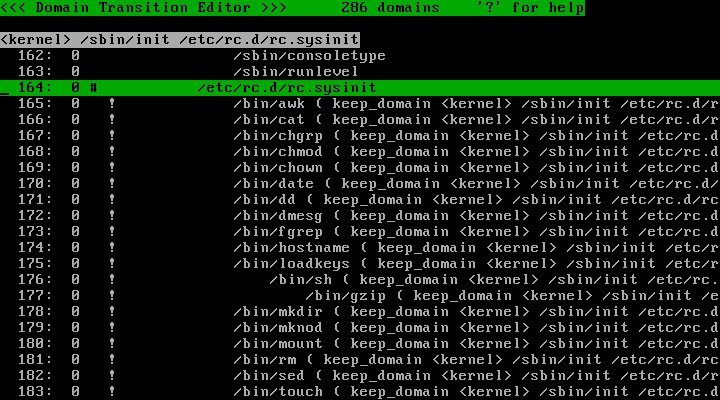
Domains with the "#" mark
This means that multiple programs might belong to this domain due to the keep_domain directive.
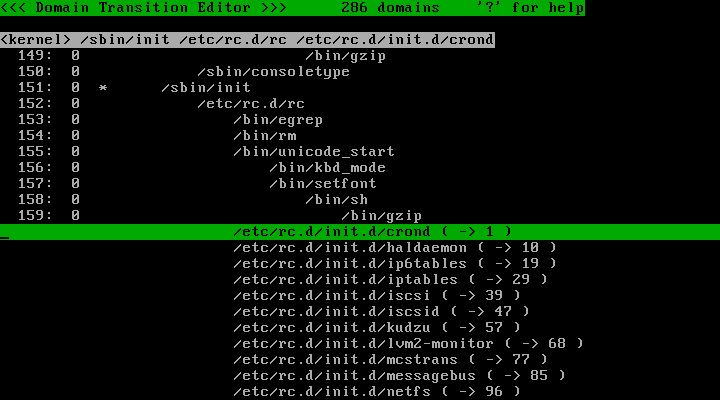
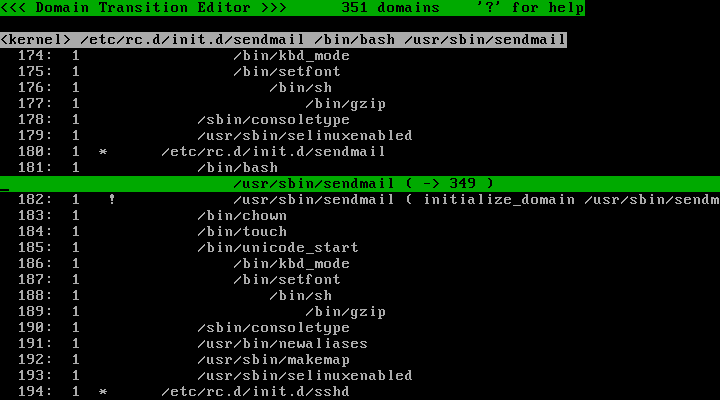
Domains with "( -> n )"
This means that the domain is not a real domain. The process transits to the domain at the line number specified by "n" due to the initialize_domain directive.
Domains with "( -> Not Found )"
This means that the domain is not a real domain. This occurs when the initialize_domain directive has been set, but the destination domain has not been created yet.
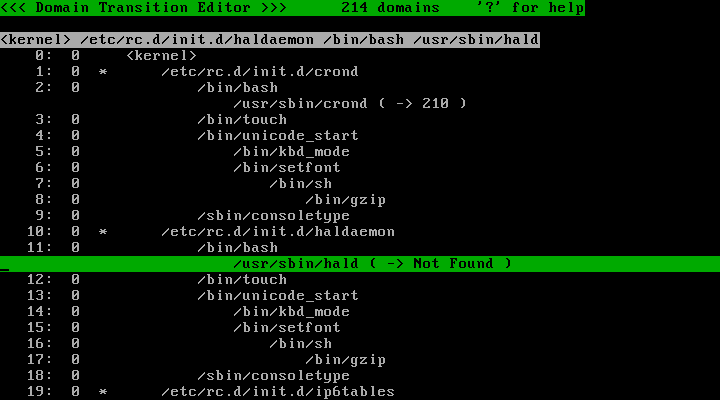
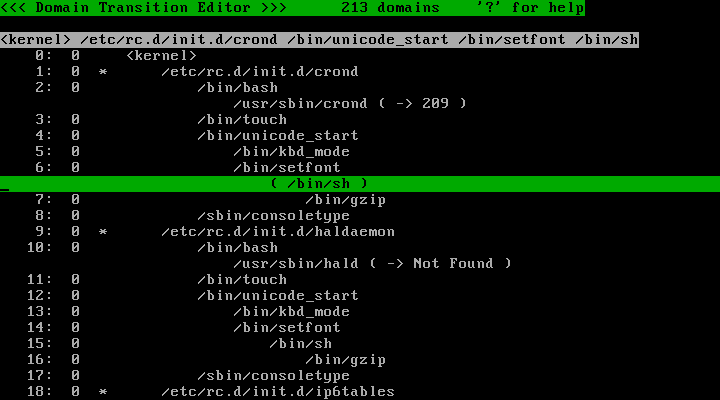
Domains inside parenthesis
This means that the domain does not exist. This line is displayed for avoiding tree indent breakage.
The initialize_domain and no_initialize_domain directives
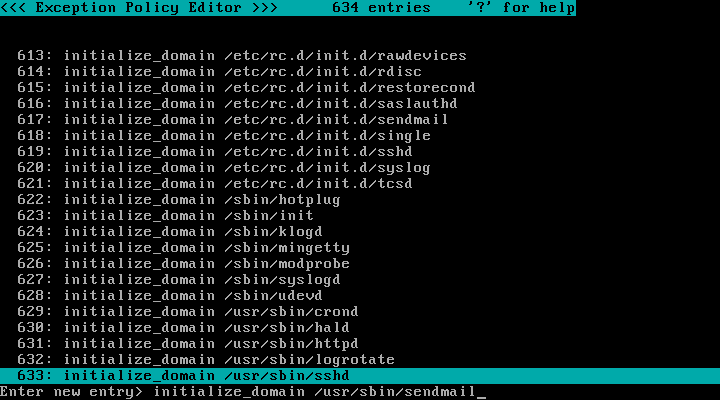
The initialize_domain directive involves using the "Exception Policy Editor" and "Domain Transition Editor" screens. First, switch to the "Exception Policy Editor" screen, press "a" to add an entry and then type out the string you wish to add:
Switch to the "Domain Transition Editor" screen. Domains which execute the program you specified using the directive will have "( -> Not Found )" as the domain for the program does not exist yet.
Also, domains which became unreachable due to the directive are now marked with the "!" symbol:
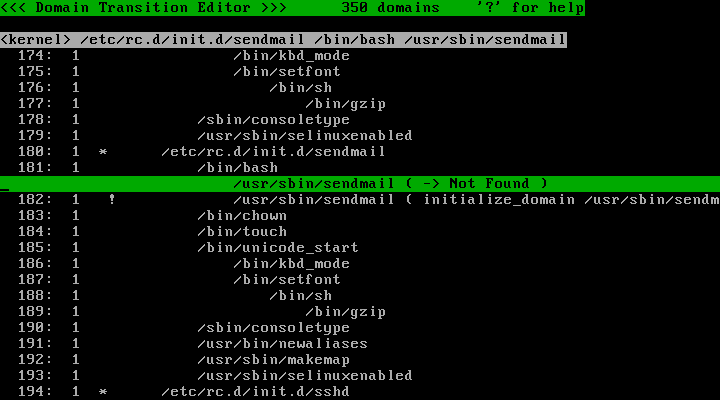
To correct this, create the missing domain by pressing the "a" key and entering the new domain:
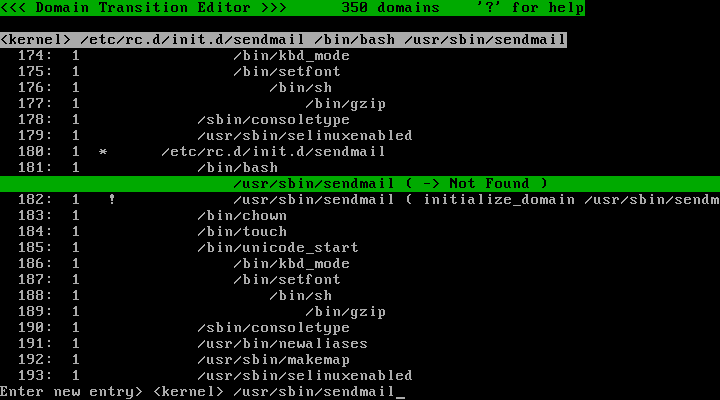
Now the "( -> Not Found )" part has changed to "( -> n )":
This is the domain corresponding to the entry above:
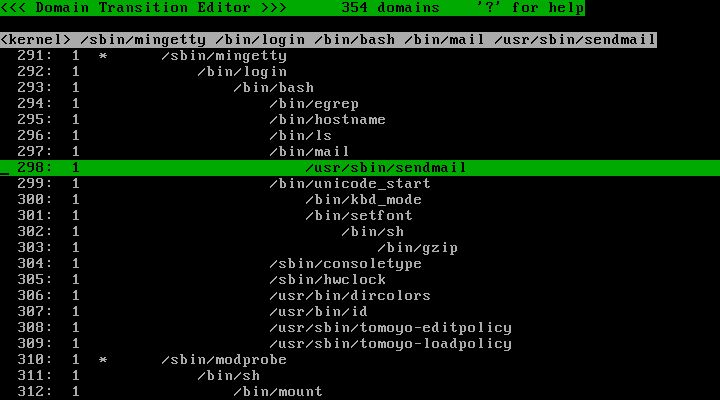
Now the "/usr/sbin/sendmail" domain is initialized into a new domain. However, the above examples show that it is initialized from a daemon script. You may not want to initialize into a new domain when it is not invoked as a daemon. The no_initialize_domain directive is useful in this situation. Switch to the "Exception Policy Editor" screen and add a new entry, such as "no_initialize_domain /usr/sbin/sendmail from /bin/mail". Now the /usr/sbin/sendmail will no longer initialized into the new domain if it is executed from /bin/mail domain:
The keep_domain and no_keep_domain directives
The keep_domain directive involves using the "Exception Policy Editor" and "Domain Transition Editor" screens. First, switch to the "Exception Policy Editor" screen and add an entry such as "keep_domain <kernel> /sbin/mingetty /bin/login /bin/bash". Return to the "Domain Transition Editor" screen and the domain that you have specified the directive for will appear with a "#" symbol. Descendent domains will appear with the "!" symbol:
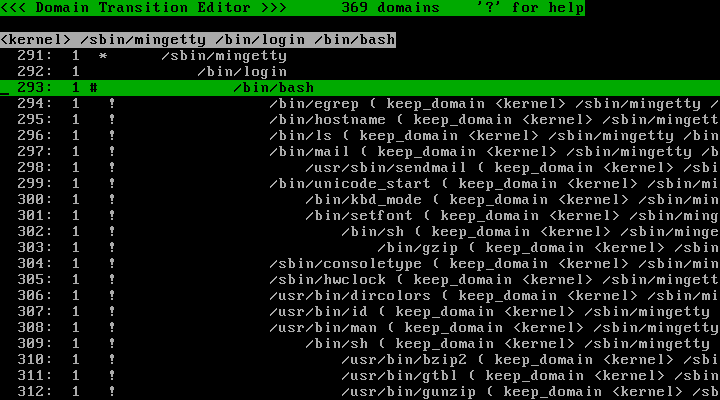
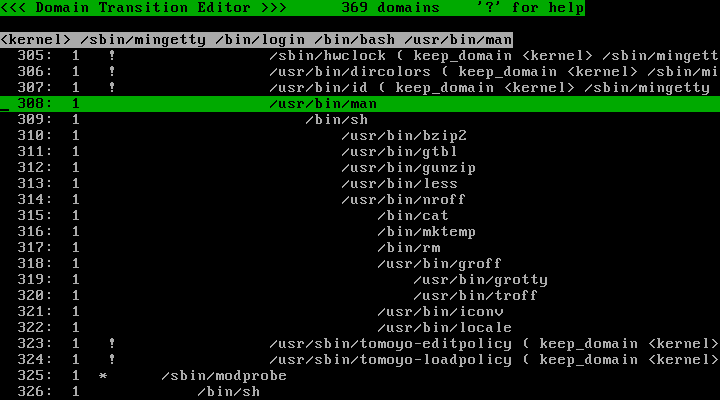
Now all executions in the chosen domain will not undergo a domain transition. To force a domain transition for a particular application, the no_keep_domain directive can be used. Switch to the "Exception Policy Editor" screen and add an entry such as "no_keep_domain /usr/bin/man from /bin/bash". Return to the "Domain Transition Editor" screen and the "<kernel> /sbin/mingetty /bin/login /bin/bash /usr/bin/man" domain and its descendents are no longer marked with a "!":
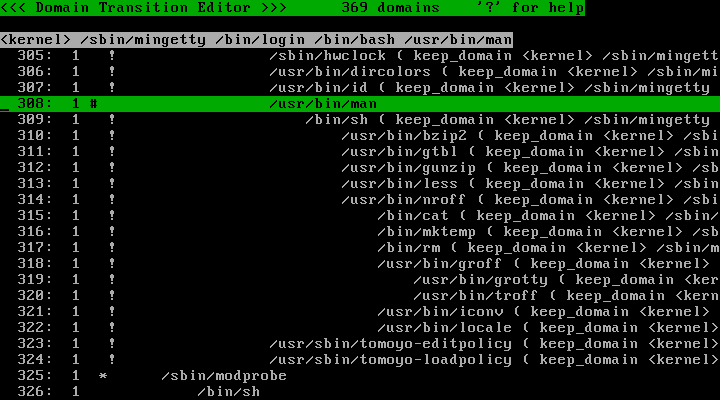
It is possible to prevent domain transitions again from "/usr/bin/man" by adding "keep_domain /usr/bin/man" in the "Exception Policy Editor" screen. Return to the "Domain Transition Editor" screen:
Remove redundant entries
Redundant entries can be removed by patterning entries (see Chapter 6: How do I develop policy?). Switch to the Domain Policy Editor screen and add an entry such as "allow_read /home/kumaneko/SVN/\{\*\}\/\*":
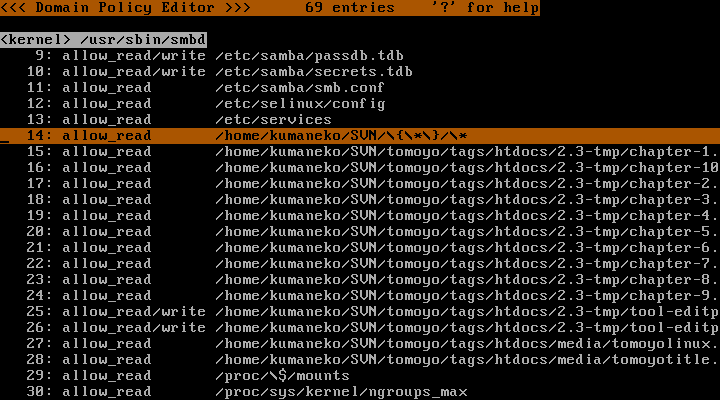
This manually added entry matches many of the entries that are already defined. Move the cursor to the patterned entry you have just added and press the "o" key. This will select all entries that are implied by the patterned entry:
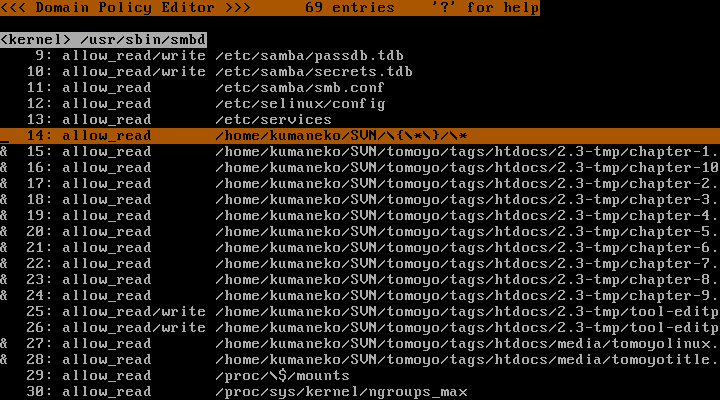
These can now be deleted with the "d" key. This can be repeated for any patterned entries that you add.